
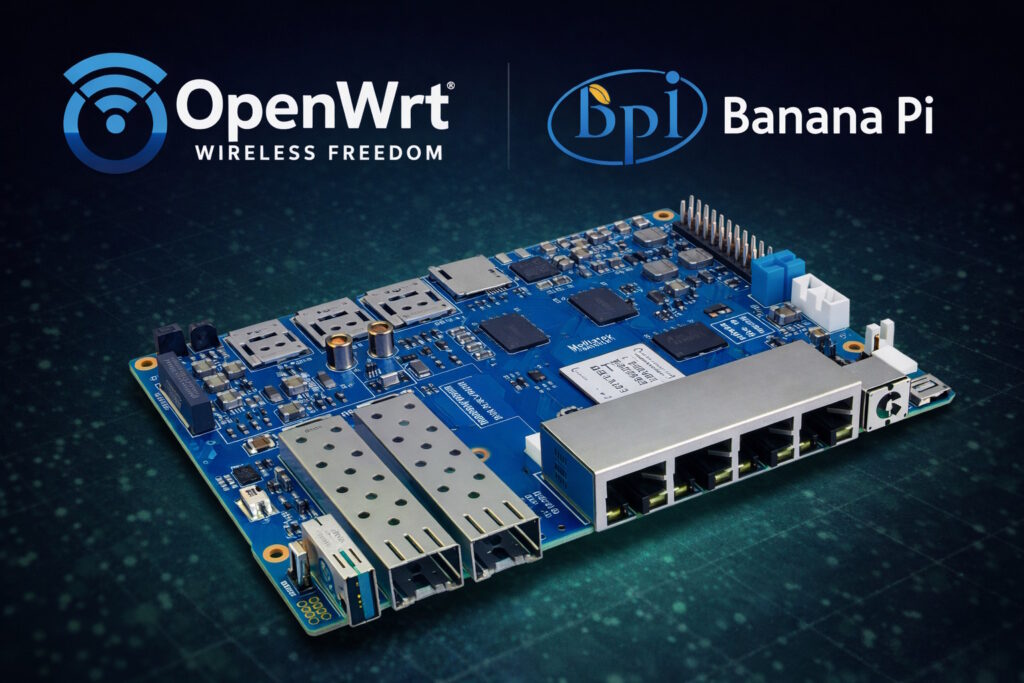
Running OpenWrt from the onboard eMMC on the Banana Pi BPI-R4 is a big quality-of-life upgrade: faster storage, fewer SD-card surprises, and (usually) the full ~8 GB becomes available for packages and logs. ✅
This BPI-R4 OpenWrt eMMC Install guide walks you through the entire process from a blank SD card to a working eMMC boot.
One important hardware detail drives the whole process: on BPI-R4, the SD card and eMMC share the same SoC controller, so the typical workflow in a BPI-R4 OpenWrt eMMC Install is:
Boot from SD → install to NAND → boot from NAND → install to eMMC → boot from eMMC
That “NAND step” is not a gimmick — it’s the practical way to flash eMMC reliably on this board. 🔁
What you need 🧰
Quick download links (from the original source):
- PuTTY (latest): https://www.chiark.greenend.org.uk/~sgtatham/putty/latest.html
- balenaEtcher (download): https://etcher.balena.io/#download-etcher
Hardware
- MicroSD card (512 MB minimum; 1–8 GB is fine; bigger is also fine).
- MicroSD card reader for your PC.
- USB-to-Serial (USB-TTL / USB-UART) adapter with 3.3V logic.
- ⚠️ Must be true 3.3V on TX/RX, not “3.3V only on VCC”.
- 3 jumper wires (female–female): GND, TX, RX.
Software
- PuTTY (Windows) or any serial terminal (Linux/macOS).
- balenaEtcher (or another image flasher).
Step 1 — Get the right OpenWrt images 📦
In this BPI-R4 OpenWrt eMMC Install, you’ll download two images: one for SD bootstrapping and one for sysupgrade/maintenance.
You typically want two files:
- SD card image (used only as the initial installer environment)
- looks like:
...bananapi_bpi-r4-sdcard.img.gz
- looks like:
- Sysupgrade image (useful for upgrades and sometimes for fixing partition layout)
- looks like:
...bananapi_bpi-r4-squashfs-sysupgrade.itb
- looks like:
Recommended approach: Firmware Selector (easy, customizable)
Direct links (from the original source):
- BPI-R4: https://firmware-selector.openwrt.org/?version=SNAPSHOT&target=mediatek%2Ffilogic&id=bananapi_bpi-r4
- BPI-R4 PoE: https://firmware-selector.openwrt.org/?version=SNAPSHOT&target=mediatek%2Ffilogic&id=bananapi_bpi-r4-poe
If your browser doesn’t pre-select the model automatically, open https://firmware-selector.openwrt.org/ and type bananapi bpi-r4 (or bpi-r4 poe) into the device search box.
- Open the OpenWrt Firmware Selector in your browser.
- Search for your exact model:
bananapi_bpi-r4- or
bananapi_bpi-r4-poe(if your board is the PoE variant)
- Prefer a stable release unless you explicitly want snapshots.
- Click “Customize installed packages and/or first boot script”.
- Add packages you want preinstalled. Minimum practical set:
luci(web UI)cfdisk(to expand partitions)
Optional “nice to have” set:
nano-full(editor)curlmc(Midnight Commander)
- Request the build and download:
- SD card image (
sdcard.img.gz) - sysupgrade image (
sysupgrade.itb)
- SD card image (
Integrity check (highly recommended) 🔐
After downloading, verify checksums:
Windows (PowerShell / CMD):
certutil -hashfile <filename> SHA256Linux/macOS:
sha256sum <filename>Compare with the sha256sums file from the same OpenWrt download directory.
Step 2 — Flash OpenWrt to the MicroSD card 💾
- Insert the MicroSD into your PC.
- Open balenaEtcher.
- Select the OpenWrt SD image (
sdcard.img.gz).- Etcher usually supports
.gzdirectly. If yours doesn’t, uncompress first.
- Etcher usually supports
- Select the target MicroSD card.
- Flash and safely eject.
Do not power on the BPI-R4 yet.
Step 3 — Connect the serial console (UART) 🧵
You need UART to interrupt the boot timer and use the U-Boot boot menu.
- Find the UART header near the USB-A port, labeled like: G / TX / RX.
- Wire it:
- G (router) → GND (USB-TTL)
- TX (router) → RX (USB-TTL)
- RX (router) → TX (USB-TTL)
⚠️ Do not connect VCC. Power the router only from its normal PSU.
PuTTY settings (Windows)
- Connection type: Serial
- Serial line: your COM port (e.g.,
COM5) - Speed (baud): 115200
- Open the session → black console window is expected.
Step 4 — Boot from SD and install OpenWrt to NAND 🧱
- Insert the flashed MicroSD into the BPI-R4.
- Set boot switches to SD boot as 1:1 (both switches down).
- Power on the router.
- Watch the serial log.
- When the U-Boot menu appears, press Up/Down within ~3 seconds to stop auto-boot.
- Select the menu entry like:
- “Install bootloader, recovery and production to NAND”
- (The entry number can differ by U-Boot/OpenWrt build.)
- Wait until it finishes.
- Power off the router.
At this point you have OpenWrt installed on NAND, which is the stepping stone to write eMMC.
Step 5 — Boot from NAND and install OpenWrt to eMMC ⚙️
- Set boot switches to NAND boot as 0:1 (left up, right down).
- Power on.
- Again interrupt the boot timer in the U-Boot menu.
- Select the menu entry like:
- “Install bootloader, recovery and production to eMMC”
- Wait until it completes.
- Choose Reboot (or power cycle).
✅ You have now completed the core BPI-R4 OpenWrt eMMC Install.
Step 6 — Expand /overlay to use the full eMMC 📈
For a successful BPI-R4 OpenWrt eMMC Install, expanding /overlay is what turns the default ~400–500 MB overlay into several GB of usable space.
After the eMMC install, OpenWrt may still show a small overlay (~400–500 MB). The goal is to expand it to the full available eMMC space.
6.1 Boot into OpenWrt (often from NAND for this step)
After the eMMC flashing completes, let the router boot OpenWrt normally (or choose “Run default boot command”).
When you see:
root@OpenWrt:~#…you’re ready.
6.2 Identify the eMMC disk and overlay partition
Run:
lsblk -o NAME,SIZE,FSTYPE,MOUNTPOINT

df -h
Commonly on BPI-R4 images, eMMC is /dev/mmcblk0, and the overlay (rootfs_data) partition is often /dev/mmcblk0p5.
⚠️ If your partition numbers differ, trust what lsblk / df -h shows.
6.3 Resize the partition using cfdisk
Run:
cfdisk /dev/mmcblk0Then:
- Select the partition that corresponds to overlay/rootfs_data (often
mmcblk0p5). - Choose Resize → accept the maximum size.
- Choose Write → type
yes. - Choose Quit.
Power off the router.
Step 7 — Final boot from eMMC 🚀
- Set boot switches to eMMC boot as 1:0 (left down, right up).
- Connect Ethernet to a LAN port.
- Power on.
- Open the router UI:
http://192.168.1.1
- Default login is usually:
- user:
root - password: empty (then set one!)
- user:
Verify space:
df -hIf the overlay expansion worked, you should see several GB available.
This completes the BPI-R4 OpenWrt eMMC Install workflow. 🎉
Troubleshooting (common issues) 🛠️
If something doesn’t match what you expect during the BPI-R4 OpenWrt eMMC Install, start here — most problems are wiring, boot-switch position, or selecting the wrong target in U-Boot.
1) “I don’t see the eMMC install option in U-Boot”
- Make sure you’re booting from NAND when attempting the eMMC install.
- Some builds show different menu numbering or text.
2) Overlay is still ~440 MB after resizing
Try a sysupgrade from LuCI (often triggers a proper layout/resize process):
- LuCI → System → Backup / Flash Firmware
- Upload the
...sysupgrade.itb - Flash (optionally keep settings if you are confident)
Recheck df -h after reboot.
3) Serial console output is garbled
- Confirm baud rate is 115200.
- Confirm the USB-TTL adapter is 3.3V logic.
- Confirm TX/RX are crossed.
4) Etcher flashes, but board won’t boot from SD
- Try a different MicroSD card.
- Try a different card reader.
- Verify SHA256 of the downloaded image.
Notes and safe practices ✅
After the BPI-R4 OpenWrt eMMC Install, these quick steps help you lock things down and keep recovery options simple.
- Set a root password right away:
passwd - Keep your sysupgrade image downloaded for quick recovery.
- If you’re experimenting, keep the MicroSD card handy — it’s the fastest “rescue boot” option.
References (official / primary) 📚
Links from the original source:
- PuTTY (latest): https://www.chiark.greenend.org.uk/~sgtatham/putty/latest.html
- balenaEtcher (download): https://etcher.balena.io/#download-etcher
- OpenWrt Firmware Selector (BPI-R4): https://firmware-selector.openwrt.org/?version=SNAPSHOT&target=mediatek%2Ffilogic&id=bananapi_bpi-r4
- OpenWrt Firmware Selector (BPI-R4 PoE): https://firmware-selector.openwrt.org/?version=SNAPSHOT&target=mediatek%2Ffilogic&id=bananapi_bpi-r4-poe
- Default router UI: http://192.168.1.1
Additional official references:
- OpenWrt Firmware Selector (home): https://firmware-selector.openwrt.org/
- OpenWrt Wiki (BPI-R4): https://openwrt.org/inbox/toh/sinovoip/bananapi_bpi-r4
Original source 🔗
Original instruction thread (4PDA): https://4pda.to/forum/index.php?showtopic=1093476&st=200#entry132420013
Leave a Reply